> For the complete documentation index, see [llms.txt](https://docs.api.market/llms.txt). Markdown versions of documentation pages are available by appending `.md` to page URLs; this page is available as [Markdown](https://docs.api.market/how-to-configure-auto-pay.md).
# How to Configure Auto-Pay?
**Never run out of API credits with automatic wallet top-ups**
***
### 💡 What is Auto-Pay?
Auto-Pay is a feature that **automatically adds funds to your wallet** when your balance falls below a threshold you set.
**How it works in simple terms:**
```
You set: "When my balance goes below $10, add $20"
→ Balance drops to $9
→ Auto-Pay charges your card $20
→ New balance: $29 ✅
```
This ensures your API calls **never get interrupted** due to insufficient balance.
{% hint style="info" %}
💡 **Think of it like:** Auto-refill for your phone data plan — but for API credits!
{% endhint %}
***
### 📋 Before You Start
To enable Auto-Pay, you need:
* ✅ **A saved payment method** (credit/debit card) — Learn [how to add payment details](/how-do-i-add-payment-details.md)
* ✅ **A minimum top-up amount of $5**
{% hint style="warning" %}
⚠️ **No Card?** Add a payment method first at **Account → Billing & Payments → Add New**
{% endhint %}
***
### 🔧 How to Configure Auto-Pay
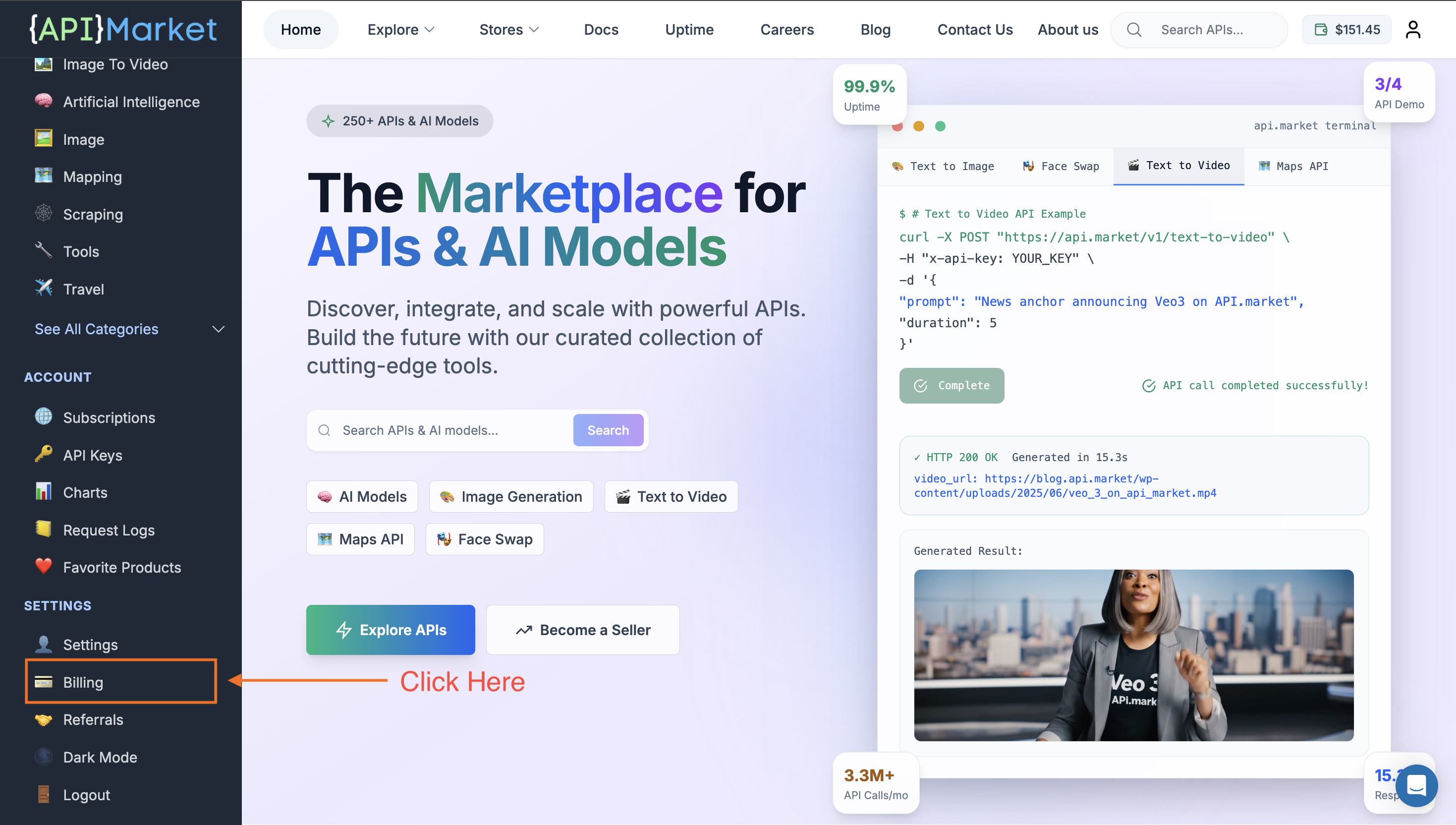
#### Step 1: Go to Billing & Payments
Navigate to your **Account → Billing & Payments** page.
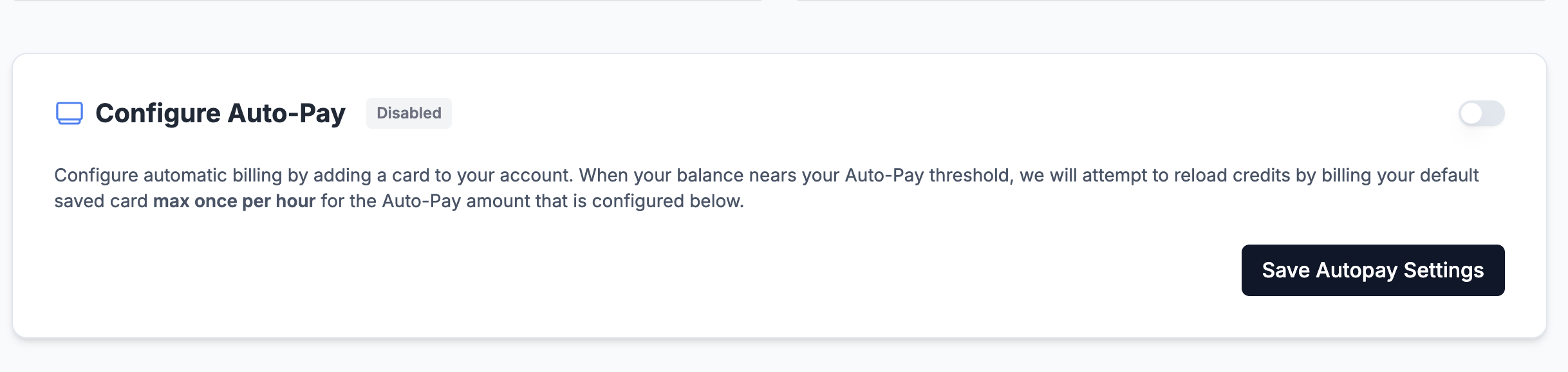
#### Step 2: Find the Auto-Pay Section
Scroll down to find the **"Configure Auto-Pay"** section.
#### Step 3: Enable Auto-Pay
Click the **toggle switch** to enable Auto-Pay.
{% hint style="info" %}
💡 If you haven't added a payment method yet, you'll see an error: **"Please add a card before enabling AutoPay."** — Add one here
{% endhint %}
***
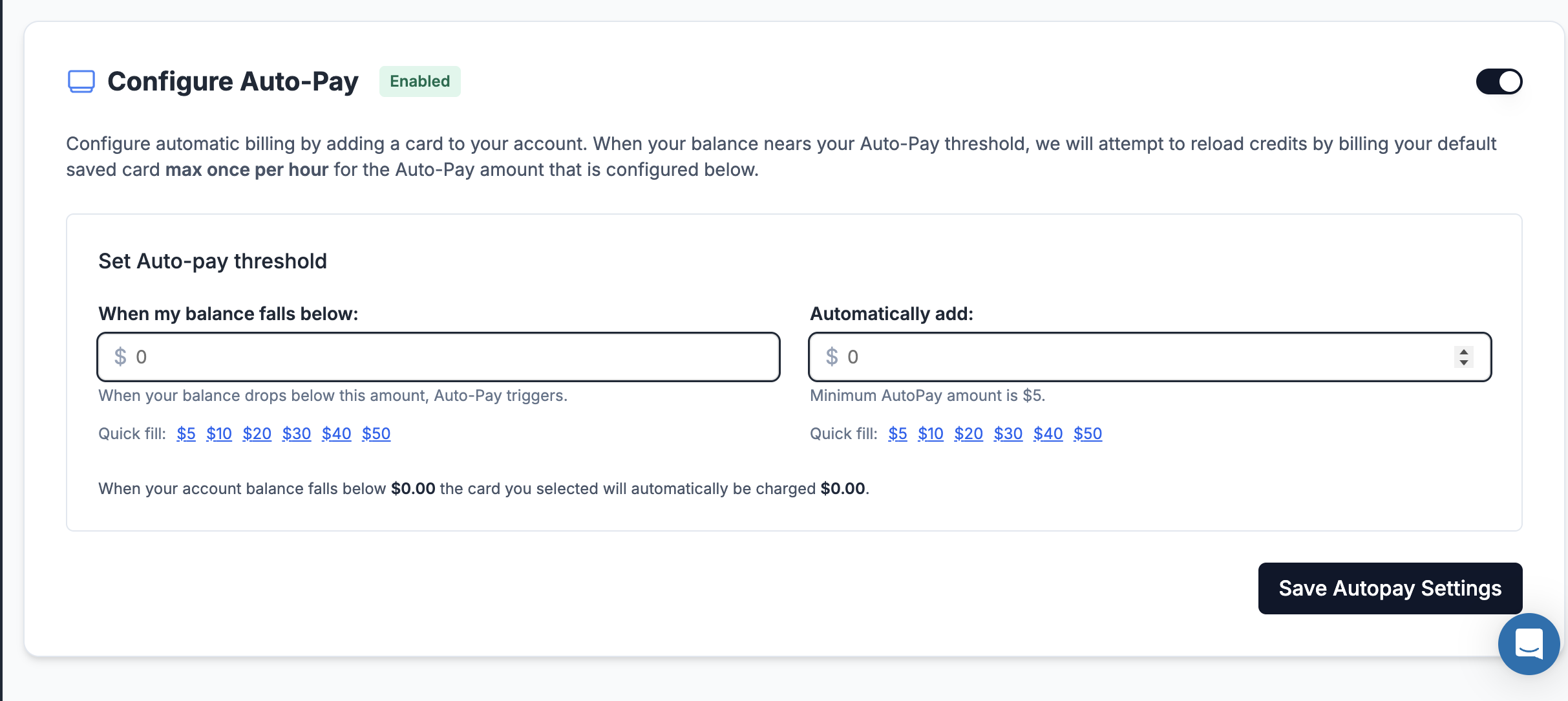
#### Step 4: Set Your Threshold
Configure **"When my balance falls below"** — this is your trigger point.
| Example | Meaning |
| ------- | ---------------------------------------------- |
| $10 | Auto-Pay triggers when balance drops below $10 |
| $20 | Auto-Pay triggers when balance drops below $20 |
| $50 | Auto-Pay triggers when balance drops below $50 |
**Quick-fill options:** $5, $10, $20, $30, $40, $50
#### Step 5: Set the Top-Up Amount
Configure **"Automatically add"** — this is how much will be charged to your card.
| Example | Meaning |
| ------- | ----------------------------------------------- |
| $10 | Wallet gets $10 added when threshold is crossed |
| $20 | Wallet gets $20 added when threshold is crossed |
| $50 | Wallet gets $50 added when threshold is crossed |
{% hint style="warning" %}
⚠️ **Minimum Amount:** The minimum Auto-Pay amount is **$5**.
{% endhint %}
#### Step 6: Save Settings
Click **"Save Autopay Settings"** to activate.
***
### 📊 Example Configuration
Here's a typical Auto-Pay setup:
```
Threshold: $10 (trigger when balance falls below)
Amount: $20 (automatically add this much)
```
**How it works:**
1. Your wallet balance is $15
2. You use $6 worth of API calls
3. Balance drops to $9 (below $10 threshold)
4. Auto-Pay automatically charges $20 to your card
5. New balance: $29 ✅
***
### ⚙️ How Auto-Pay Works Behind the Scenes
Step
What Happens
1
System checks wallets hourly
2
If balance < threshold, payment is initiated
3
Your default card is charged
4
Credits are added to your wallet instantly
5
If payment fails, system retries (up to 3 times)
{% hint style="info" %}
💡 **Rate Limit:** Auto-Pay runs **maximum once per hour** to prevent excessive charges.
{% endhint %}
***
### 🔄 Managing Auto-Pay
#### To Disable Auto-Pay
Simply toggle the switch **OFF** and click **"Save Autopay Settings"**.
#### To Change Settings
1. Update threshold and/or amount values
2. Click **"Save Autopay Settings"**
#### To Change Payment Method
1. Go to **Payment Methods** section
2. Set a different card as **Default**
3. Auto-Pay will use the new default card
***
### 🎯 Why Use Auto-Pay?
| Benefit | Description |
| ------------------------- | ----------------------------------------------------- |
| **Uninterrupted Service** | Your APIs keep working even when you forget to top up |
| **Set It & Forget It** | Configure once, never worry about balance again |
| **Automatic Retries** | If payment fails, system retries up to 3 times |
| **Email Notifications** | Get notified if Auto-Pay fails or gets disabled |
| **Full Control** | You set the threshold and top-up amount |
***
### 💡 Tips for Best Results
✅ **Set a comfortable threshold** — Give yourself buffer for high-usage periods
✅ **Match threshold to usage** — If you spend \~$15/week, set threshold around $15-20
✅ **Top-up in larger amounts** — Reduces transaction frequency and potential fees
✅ **Keep card updated** — Update before expiry to avoid service interruption
✅ **Monitor email** — Watch for Auto-Pay failure notifications
***
### 📖 Related Documentation
* [**How do I add Payment details?**](/how-do-i-add-payment-details.md) - Adding cards
* [**How does API.market charge me?**](/how-does-api.market-charges-me.md) - Billing explained
* [**How to use Wallet?**](/how-to-use-wallet.md) - Wallet features
***
### 🆘 Need Help?
* **💬 Live Chat:** Bottom right corner of any page
* **📧 Email:**
* **📅 Book a Call:** [Schedule a demo](https://calendly.com/magicapi)
***